Appearance
Importing Unreal Engine Meshes to Blender
This guide explains how to import glTF/GLB files exported from Unreal Engine into Blender.
Prerequisites
- Blender 2.80 or later (glTF support is built-in)
- Exported
.gltfor.glbfiles from the Unreal to Blender Exporter
Enable the glTF Add-on
The glTF 2.0 importer is included with Blender but may need to be enabled:
- Open Blender
- Go to Edit > Preferences
- Select the Add-ons tab
- Search for "gltf"
- Enable Import-Export: glTF 2.0 format

TIP
In recent versions of Blender (3.0+), the glTF add-on is enabled by default.
Importing Your Files
- In Blender, go to File > Import > glTF 2.0 (.glb/.gltf)
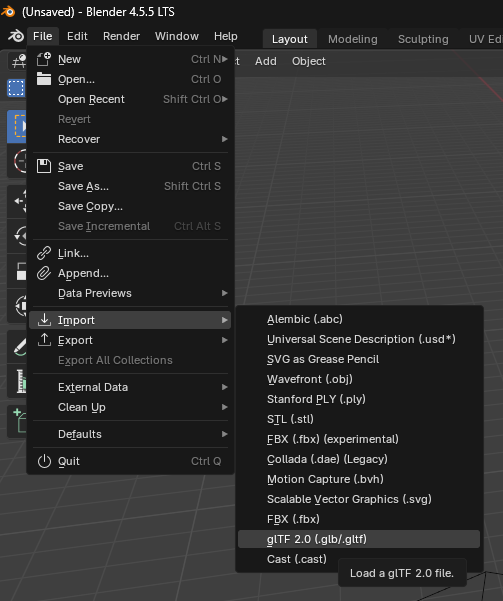
- Navigate to your exported file
- Select the
.glbor.gltffile - Click Import glTF 2.0
Import Settings
The glTF importer provides several options:
Transform
- Scale: Adjust import scale (default 1.0)
- Apply Transform: Apply transformations during import
Mesh
- Import Normals: Use the normals from the file
- Import Vertex Colors: Import vertex color data if present
Animation
- Import Animations: Include animation data
- Animation Offset: Frame offset for imported animations
Materials
- Import Materials: Import material definitions
- Guess Original Bind Pose: Attempt to restore T-pose for skeletal meshes
Recommended Settings
For most Unreal Engine exports, use these settings:
| Setting | Value | Reason |
|---|---|---|
| Scale | 0.01 | UE uses centimeters, Blender uses meters |
| Import Normals | Enabled | Preserve UE normal data |
| Import Materials | Enabled | Keep material assignments |
Scale Difference
Unreal Engine uses centimeters as the default unit, while Blender uses meters. You may need to scale your import by 0.01 or adjust your scene scale.
Troubleshooting
Model Appears Too Large/Small
Unreal Engine and Blender use different unit scales:
- Set import Scale to
0.01to convert from UE centimeters to Blender meters - Or scale the imported object in Blender after import
Textures Not Loading (glTF format)
If you exported as .gltf (not .glb), ensure:
- The texture files are in the same folder as the
.gltffile - The
.binfile is also present - File paths haven't changed since export
Materials Look Different
glTF uses a physically-based rendering (PBR) material model. Some UE material features may not translate directly:
- Complex material graphs are baked to textures
- Custom shaders become standard PBR materials
- Some effects may need manual recreation in Blender
Missing Animations
Ensure you:
- Exported a Skeletal Mesh with animations, or
- Exported a Level Sequence with the mesh
- Enabled "Import Animations" in Blender's import settings
Working with Imported Meshes
After import, you can:
- Edit Geometry: Tab into Edit Mode
- Adjust Materials: Open the Shader Editor
- Modify Armatures: Select the skeleton and edit in Pose Mode
- Re-export: Use Blender's glTF exporter for round-trip workflows
See Also
- Getting Started - Export from Unreal Engine
- Export Options - Configure export settings
- Blender Manual: glTF Import - Official Blender documentation