Appearance
Getting Started
This guide will help you install and start using the Unreal to Blender Exporter plugin for Unreal Engine.
Installation
From the Marketplace
- Open the Epic Games Launcher
- Navigate to the Unreal Engine Marketplace
- Search for "Unreal to Blender Exporter"
- Click Install to Engine and select your engine version
Manual Installation
If you received the plugin as a .zip file:
- Create a folder named
glTFBatchExporterin your Engine'sPlugins/Marketplacedirectory:- Windows:
C:\Program Files\Epic Games\UE_5.6\Engine\Plugins\Marketplace\glTFBatchExporter
- Windows:
- Extract the contents of the
.zipfile into this folder - Restart the Unreal Editor
TIP
You can also install the plugin directly into your project's Plugins folder for project-specific use.
Accessing the Exporter
There are two ways to open the Unreal to Blender Exporter:
Via the Window Menu
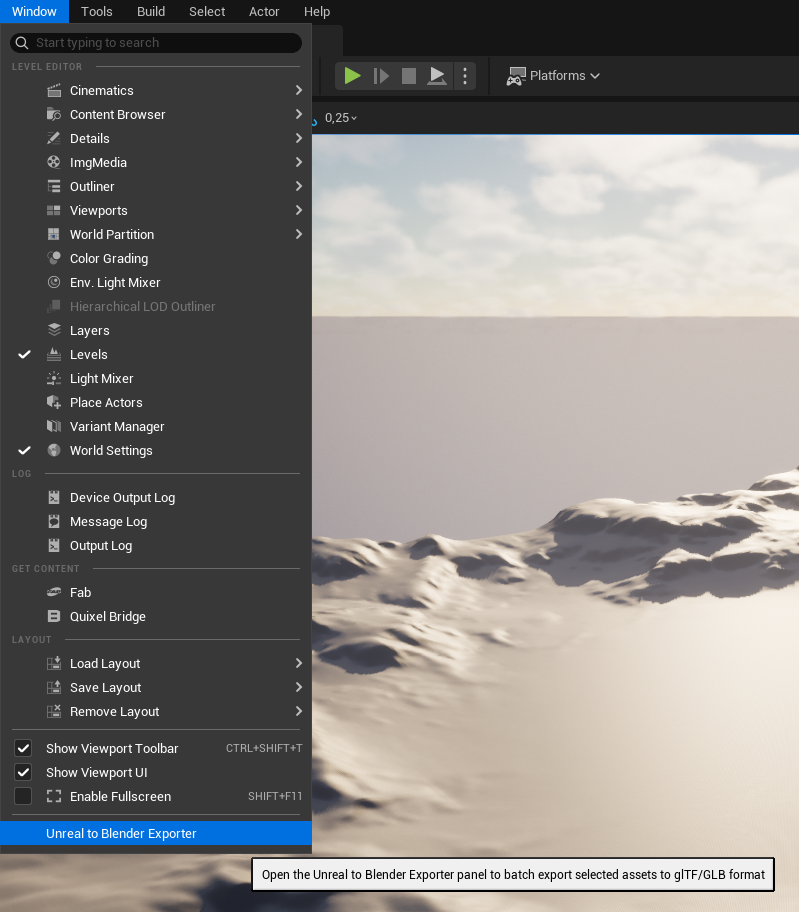
Navigate to Window > Unreal to Blender Exporter in the main menu bar.
Via Context Menu
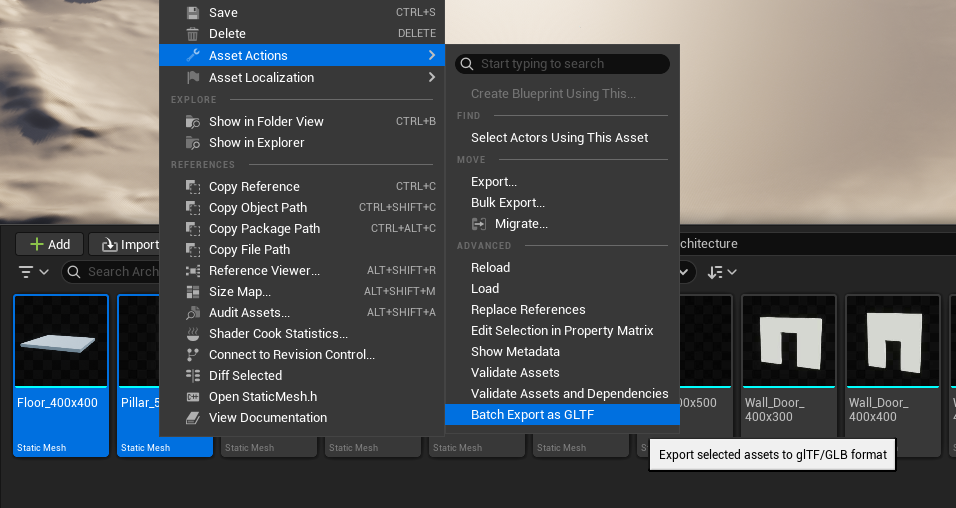
- Select one or more assets in the Content Browser (hold Left Shift and click to select multiple)
- Right-click on the selection
- Navigate to Scripted Asset Actions > Batch Export as GLTF
The Export Window
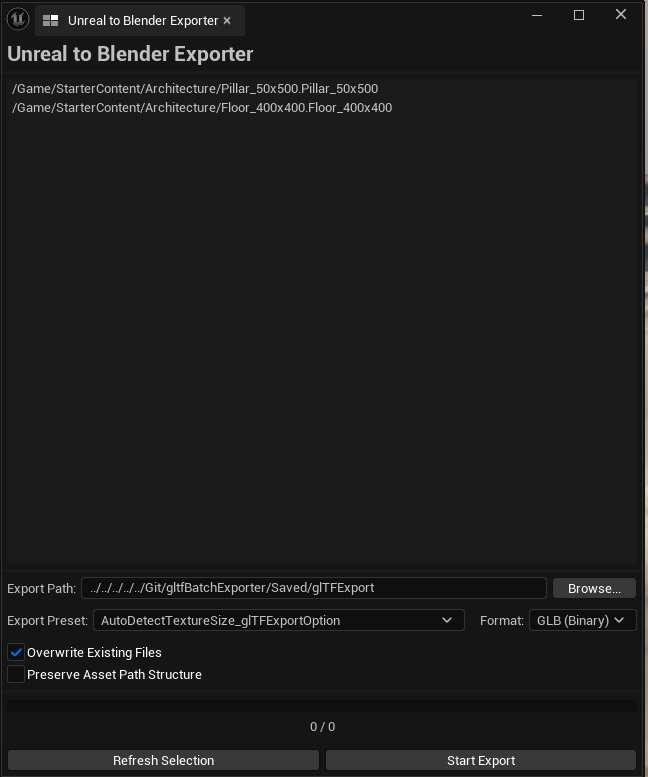
The export window consists of:
- Asset List: Shows all assets queued for export
- Export Path: The destination folder for exported files
- Browse Button: Opens a folder picker dialog
- Export Preset: Select texture resolution settings
- Format: Choose between glTF or GLB output
- Overwrite Existing: Replace files if they already exist
- Preserve Asset Path: Maintain the Content Browser folder structure in the export directory
- Export Button: Start the export process
- Progress Bar: Shows export progress during batch operations
Basic Export Workflow
Add Assets: Open the exporter via Window menu, then select assets in the Content Browser. Or select assets first, then use the context menu.
Set Export Path: Enter or browse to your desired export folder.
Choose Export Preset: Select a texture resolution preset:
- Auto Detect (uses original texture sizes)
- 1024x1024
- 2048x2048
- 4096x4096
- 8192x8192
Select Format:
- glTF: Exports as separate
.gltf,.bin, and texture files - GLB: Exports as a single binary
.glbfile
- glTF: Exports as separate
Configure Options:
- Enable Overwrite Existing to replace existing files
- Enable Preserve Asset Path to maintain folder hierarchy
Export: Click the Export button and monitor progress
Supported Asset Types
- Static Meshes
- Skeletal Meshes
- Level Sequences (transform tracks only)
Next Steps
- Export Options Reference - Learn about all available export settings
- Create Custom Presets - Configure your own export presets
- Import to Blender - Use exported assets in Blender