Appearance
Export Options Reference
This page documents all export options available in the Unreal to Blender Exporter.
Export Directory
The target folder where exported files will be saved.
- Click Browse to open a folder picker dialog
- Or type/paste the path directly into the text field
- The directory will be created if it doesn't exist
Export Preset
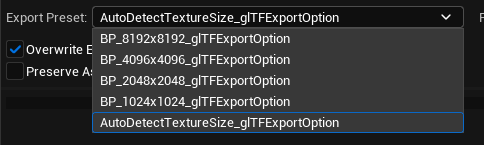
Export presets control texture resolution and other export settings. The plugin includes several built-in presets:
| Preset | Description |
|---|---|
| Auto Detect | Uses the original texture sizes from your assets |
| 1024x1024 | Resizes all textures to 1024x1024 |
| 2048x2048 | Resizes all textures to 2048x2048 |
| 4096x4096 | Resizes all textures to 4096x4096 |
| 8192x8192 | Resizes all textures to 8192x8192 |
TIP
Smaller texture sizes result in smaller file sizes and faster exports, but with reduced visual quality. Choose based on your target platform and quality requirements.
Export Format
Choose the output format for your exported assets:
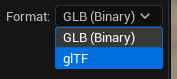
glTF
Exports as separate files:
.gltf- JSON file containing scene structure.bin- Binary file containing geometry data- Texture files (
.png,.jpg)
Best for:
- Inspecting and editing the exported structure
- Selective texture replacement
- Version control friendliness
GLB (Binary)
Exports as a single binary file:
.glb- Contains everything in one file
Best for:
- Easy file management
- Web deployment
- Sharing and distribution
Options
Overwrite Existing
When enabled, existing files at the export path will be replaced without prompting.
When disabled, the exporter will skip files that already exist.
Preserve Asset Path
When enabled, the Content Browser folder structure is replicated in the export directory.
Example:
Asset path: /Game/Characters/Hero/SK_Hero
| Preserve Path | Export Path | Result |
|---|---|---|
| Disabled | C:\Exports | C:\Exports\SK_Hero.glb |
| Enabled | C:\Exports | C:\Exports\Characters\Hero\SK_Hero.glb |
Advanced Export Settings
The export presets use Unreal's built-in GLTFExportOptions class, which provides additional settings:
Mesh Options
- Export vertex colors
- Export morph targets (blend shapes)
- LOD export settings
Material Options
- Texture format and compression
- Material proxy export (for materials with glTF proxies defined)
- Emissive factor handling
Animation Options
- Level Sequence export (transform tracks)
- Sequence playback rate
TIP
To access advanced settings, create a custom export preset and configure the underlying GLTFExportOptions properties.
See Also
- Create Custom Presets - Make your own export configurations
- Getting Started - Basic usage guide